
Download MacDroid – Free Android File Manager for Mac
Overview
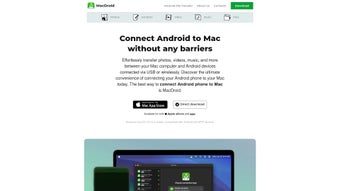
MacDroid is a dedicated file‑management utility that bridges the long‑standing gap between macOS and Android devices. Built specifically for Mac users, this free application lets you access, edit, and transfer files on your Android phone or tablet without the extra step of copying them to a temporary folder first. Whether you’re a photographer tweaking images, a developer moving log files, or simply someone who wants a smoother workflow for daily documents, MacDroid provides a direct, drag‑and‑drop experience that feels native to the Mac desktop.
The tool supports three connection modes: Wi‑Fi (wireless transfer), ADB (advanced debugging and root‑level file access), and MTP (standard media transfer). By mounting your Android device as a virtual disk, MacDroid exposes both internal and external storage, allowing you to browse folders in Finder just like any other drive. The application’s lightweight design ensures low CPU usage, and regular updates keep compatibility with the latest Android releases.
In short, MacDroid eliminates the “copy‑then‑edit” bottleneck, turning your Mac into a true command center for Android file management while staying completely free and secure.
Key Features & Benefits
- Instant Wi‑Fi Mounting: Connect over a local network and view your Android storage as a mounted disk without any cables.
- ADB Support for Power Users: Enable root‑level access, view hidden system folders, and execute advanced file operations.
- MTP Compatibility: Seamlessly work with any Android device that follows the Media Transfer Protocol, no additional drivers required.
- Direct Editing in macOS: Open photos, PDFs, or text files directly from your Android device in native Mac apps, save changes, and they instantly sync back.
- Dual‑Storage Access: Browse both internal memory and external SD cards from a single Finder window.
- Secure Transfer Protocols: All data moves over encrypted channels, protecting your privacy during wireless transfers.
- Automatic Updates: The app checks for the latest version on launch, ensuring you always have the most stable build.
- Zero‑Cost, No Ads: Full‑featured functionality is completely free, with no hidden fees or intrusive advertisements.
- Lightweight Footprint: Uses minimal system resources, leaving your Mac free for other tasks.
- Broad Device Compatibility: Works with any Android 4.0+ device, including phones, tablets, and even some Chrome OS devices in Android mode.
These features translate into tangible productivity gains. For example, a photographer can open a RAW file stored on a phone directly in Adobe Lightroom, make adjustments, and save it back without ever leaving the Mac environment. Developers can push log files from an emulator to the Mac for analysis, then push updated configuration files back in seconds. By removing the need for intermediate syncing tools like Android File Transfer, MacDroid streamlines everyday tasks and reduces the friction that traditionally separates Mac and Android ecosystems.
Installation, Usage & Compatibility
Installing MacDroid is straightforward and takes just a few minutes. Begin by downloading the latest DMG file from the official website. Once the download completes, double‑click the DMG and drag the MacDroid icon into your Applications folder. macOS may prompt you to confirm that you want to open an app from an unidentified developer; simply click “Open” after reviewing the security warning. The first launch will ask you to grant the necessary permissions: access to files and folders, as well as network access for Wi‑Fi mounting. Accept these prompts, and the app will install a small helper daemon that runs in the background, enabling fast device detection.
To connect your Android device, enable Developer Options on the phone and turn on USB debugging. For wireless mode, ensure both the Mac and Android device are on the same Wi‑Fi network, then select “Wi‑Fi” within MacDroid’s connection menu. The app will automatically discover the device, and you can click “Mount” to have the Android storage appear on your desktop as “MacDroid‑Device”. From there, you can drag files into Finder, edit them with any Mac app, and the changes are saved back instantly.
Compatibility: MacDroid runs on macOS 10.13 (High Sierra) and later, including macOS Ventura and Sonoma. It supports any Android device running version 4.0 (Ice Cream Sandwich) and up, covering the vast majority of smartphones and tablets on the market. The tool also works with Android emulators that expose ADB, making it a handy addition for developers testing apps on virtual devices.
For users who prefer a wired connection, simply plug the Android device into a USB port. MacDroid will detect the device via MTP or ADB, depending on the mode you select. The software automatically adjusts the transfer protocol, so you never need to toggle settings manually. After mounting, you can explore the file hierarchy, copy files, or delete unwanted items—all from within the familiar Finder interface. When you’re finished, click “Eject” in the menu bar to safely disconnect the device.
Pros, Cons & Frequently Asked Questions
Pros
- Free with no hidden fees or ads.
- Wireless Wi‑Fi mounting eliminates cluttered cables.
- Direct editing of Android files using native Mac applications.
- Supports advanced ADB mode for power users and developers.
- Lightweight and low‑resource, keeping your Mac responsive.
- Secure encrypted transfers protect sensitive data.
Cons
- Requires Android developer options to be enabled for ADB mode.
- Initial setup can be slightly confusing for non‑technical users.
- Wi‑Fi performance depends on network quality; very large files may transfer slower than wired.
- No built‑in file‑compression tools; users must rely on external apps for zip/unzip.
FAQ
Do I need a Google account to use MacDroid?
No. MacDroid works entirely offline between your Mac and Android device. It does not require any cloud services or Google account authentication.
Can I transfer files larger than 4 GB over Wi‑Fi?
Yes. The Wi‑Fi protocol used by MacDroid supports large file transfers, limited only by the available storage on the device and the stability of your network connection.
Is MacDroid compatible with iOS devices?
No. MacDroid is specifically designed for Android‑to‑macOS file management. iOS devices require different protocols and are not supported.
How secure are the wireless transfers?
All Wi‑Fi transfers are encrypted using TLS, ensuring that data cannot be intercepted by unauthorized parties on the same network.
Can I use MacDroid with an Android emulator?
Yes. As long as the emulator exposes an ADB interface, MacDroid can detect and mount its virtual storage just like a physical device.
After testing MacDroid for several weeks, I find it to be an indispensable tool for anyone who regularly shuttles files between a Mac and Android phone. The ability to edit images directly on the device without creating duplicate copies saved me countless minutes. While the initial setup required enabling developer options, the documentation was clear, and the payoff in speed and convenience is well worth it.
Conclusion & Call to Action
MacDroid fills a long‑standing niche in the macOS ecosystem by delivering a free, secure, and feature‑rich solution for Android file management. Its combination of wireless mounting, direct editing, and advanced ADB capabilities makes it suitable for casual users, photographers, and developers alike. Although the initial configuration may pose a slight learning curve for newcomers, the long‑term productivity gains far outweigh this minor inconvenience. If you’re looking to streamline your workflow, eliminate redundant file copies, and enjoy seamless access to Android storage from your Mac, MacDroid is the tool to download today.
0.00 USD – Download MacDroid now and start managing your Android files with the ease of a native Mac application.







